

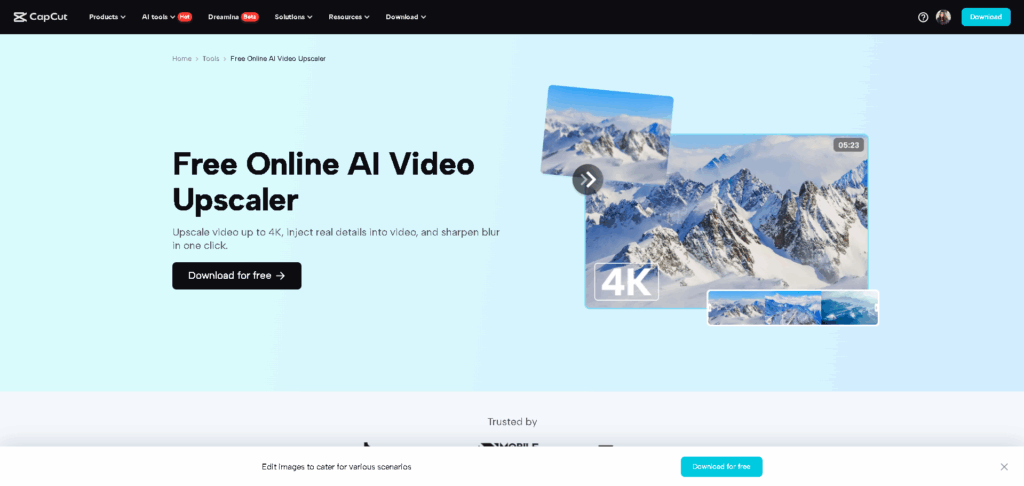
Content's sharp visuals matter more than ever. Whether you're creating videos for YouTube, TikTok, Instagram, or personal archives, clarity is king. But what if your footage is old, low-resolution, or captured in poor lighting? Instead of letting blurry videos sit forgotten, you can now revive them using a free, AI-powered tool—CapCut AI Video Upscaler. CapCut, known for its beginner-friendly editing suite, has taken a big leap into smart video enhancement. Its AI Video Upscaler lets you instantly boost the quality of your videos without needing high-end editing skills or expensive software. It utilizes deep learning to analyze and refine each frame, reduce pixelation, and enhance fine details—all with a single click.
Why Sharpen Videos with CapCut’s AI Video Upscaler?
Before diving into the how-to, let’s talk about why CapCut’s AI Video Upscaler is such a valuable tool, especially for creators, marketers, educators, and families preserving memories.
- Free and Easy to Use
Most AI-powered video tools are either expensive or require technical expertise. CapCut’s AI Upscaler provides high-quality results at no cost, and its interface is designed for everyone, from total beginners to professional video editors.
- Enhances Details Intelligently
Instead of merely boosting contrast or brightness like traditional sharpen filters, CapCut’s AI Upscaler uses deep learning to predict and recreate details. This makes old or compressed videos appear natural, rather than over-processed.
- Works on Multiple Video Types
Whether you’re working on travel vlogs, wedding footage, Zoom recordings, or clips from your old phone, CapCut’s Upscaler can bring them to HD or even 4K clarity.
How to Sharpen Your Videos with CapCut AI Video Upscaler
Ready to give your video new life? Use CapCut AI features such as AI Voice Generator, AI Video Generator, and more. These tools will make your content engaging and high-quality. Follow these simple steps using CapCut Desktop Video Editor.
Step 1: Upload Your Video
Open CapCut Desktop Video Editor and import your video. Click “Import” and select the file from your device.
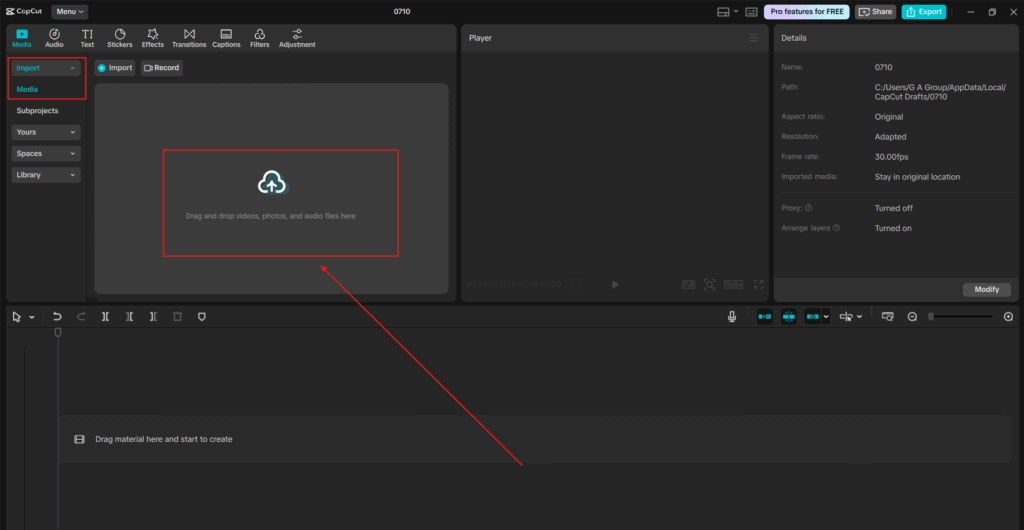
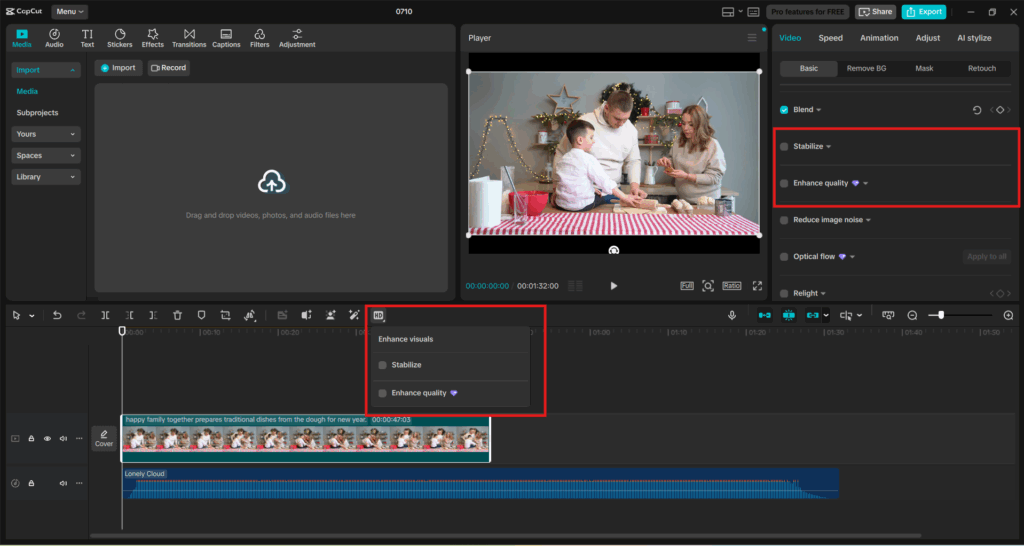
Wait for the video to load—CapCut supports a wide range of formats, including MP4, MOV, and more. For best results, use a video that’s under 5 minutes on the free version. You can upscale longer videos by trimming them into sections and uploading them separately. After uploading, click on the Video section and choose "Enhance quality".
Step 2: Choose Your Enhance Quality Level
Once you select the "Enhance quality" option, CapCut will automatically scan your video and offer options:
HD – great for improving low-resolution footage without significantly increasing file size.
UHD – ideal for converting old SD videos or any content to Full UHD or 4K.
Just click the option you want, and CapCut’s AI will start enhancing your video. You’ll see a side-by-side preview comparing the original and enhanced versions. Use the zoom-in feature to inspect detail improvements—watch how textures, edges, and faces become clearer.
After the AI finishes processing, hit “Export” to save your newly sharpened video. You can also send it directly to CapCut’s video editor to add effects, subtitles, Text to Speech AI, background music, or transitions. Want to publish right away? CapCut lets you export in optimized formats for YouTube, TikTok, or Instagram—no additional compression required.

Use Cases: Where the CapCut AI Upscaler Truly Shines
Here are some everyday examples of how CapCut’s AI Upscaler transforms low-quality videos into content worth sharing or saving.
Old Family Footage
Do you have VHS recordings or low-resolution videos from early mobile phones? CapCut can breathe new life into those precious memories, sharpening faces, fixing contrast, and even restoring faded details.
YouTube or TikTok Content
Blurry clips can quickly turn viewers away. Use the upscaler to improve old uploads or refresh low-quality B-roll for your new edits.
Educational Videos & Presentations
Online lectures or tutorials filmed on webcams can look unprofessional. Upscaling can make text on screen, facial expressions, and diagrams more legible.
Recycled Social Media Clips
If you’re repurposing content from Snapchat, Stories, or screen recordings, the AI Upscaler can increase their resolution for better quality reposts.
Tips for Better Sharpening with CapCut
Here are some smart tips to get the best results from CapCut’s AI Video Upscaler:
- Don’t Upscale Blurry Footage Beyond Reason: AI helps a lot, but extremely out-of-focus clips won’t look perfect even after upscaling.
- Avoid Over-Editing After Upscaling: Once sharpened, applying excessive filters or contrast adjustments can make videos appear unnatural.
- Use the Upscaler Before Adding Effects: Clean up your footage first, then enhance it creatively with CapCut’s editing tools.
- Combine with Stabilizer Tool: CapCut also includes video stabilization—great for handheld clips that need both clarity and smooth motion.
Conclusion
CapCut’s AI Video Upscaler is more than just a filter—it’s a free and powerful tool that gives new life to your videos. Whether you’re a digital creator, marketer, teacher, or someone looking to preserve personal memories, this tool delivers real value without any cost. With just three simple steps—Upload, Enhance, and Export—you can transform blurry, outdated, or low-res videos into crisp, high-quality content. Best of all, it takes minutes, not hours. So next time you come across a pixelated clip that feels unusable, don’t delete it—sharpen it with CapCut.